![[ Zbrush ] データの保存とロード方法について](https://www.plamophy.com/wp-content/uploads/ZBrush_data_storage_format_01.jpg)
![[ Substance 3D Designer 入門 ] Substance 3D Painter に出力するまでの基本的な手順について](https://www.plamophy.com/wp-content/uploads/substance3ddesigner-ec-camouflage-01.jpg)
![[ Substance 3D Painter ] Hard Surface 素材を使用してノーマルにペイントする方法](https://www.plamophy.com/wp-content/uploads/substance3dpainter-ec-painting-brush-normal-01.jpg)
![[ Substance 3D Painter ] 半透明マテリアルのシェーダー設定方法](https://www.plamophy.com/wp-content/uploads/substance3dpainter-ec-shader-settings-alpha-blending-01.png)
![[ Youtube ] おすすめの一覧です](https://www.plamophy.com/wp-content/uploads/youtube-recommended-list.jpg)
![[ Substance 3D Painter ] シンメトリーを使用したペイント方法](https://www.plamophy.com/wp-content/uploads/substance3dpainter-ec-painting-brush-symmetry-01.jpg)
![[ Zbrush ] UIをカスタムする方法について](https://www.plamophy.com/wp-content/uploads/ZBrush_ui-customization_01.jpg)
![[ Substance 3D Painter ] クローンツールとブレンドモード Passthrough の使用方法](https://www.plamophy.com/wp-content/uploads/substance3dpainter-ec-painting-brush-clone-01.jpg)
テクスチャ作成を進めてくると、ブラシを使用して既存部分を複製して調整したい場合があります。その時に使用するのがクローンツールです。クローンツールで思った通りに複製できない場合は、ブレンドモード Passthrogh に変更して使用する必要があります。
本記事では、クローンツールの使用方法について確認したいと思います。
クローンツールとPassthroghの使用方法

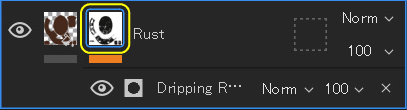
- マスクを選択した状態から、
![]()
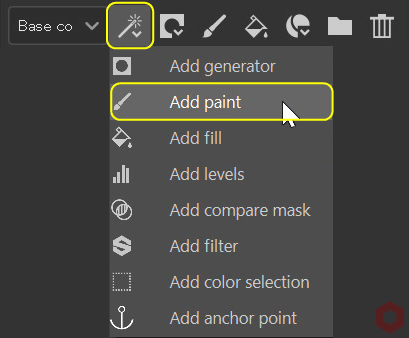
[ Add effect ] のアイコンをクリックして [ Add paint ] を選択します。![]()
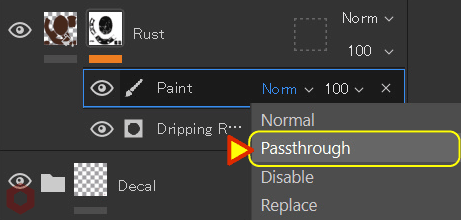
- ブレンドモードを [ Passthrough ] に変更します。
![]()
ブレンドモードを [ Passthrough ] に変更することで、
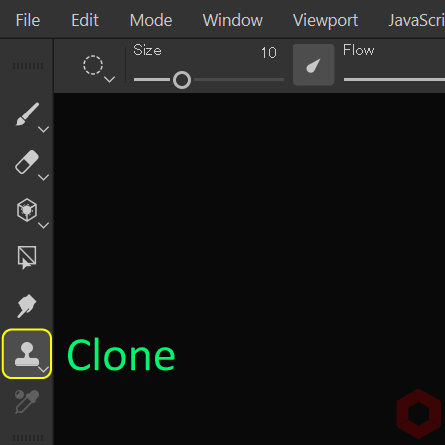
作業中の下のレイヤーからも、クローンツールで複製ことができます。 - 画面左側の [ Clone ] ボタン をクリックして、クローンツールを選択します。
![]()
- 複製したい場所にマウスを移動して、[ V ] キーを押しながら左クリックします。
- [ Assets ] から [ presets > brushes ] を選択して、任意のブラシを選択します。
ブラシのサイズや角度などの設定してペイントします。
ブラシの選択方法については、こちらのページを、
ブラシの設定方法については、詳しくはこちらのページをご参照ください。
ブラシのショートカット
・サイズを変更 Ctrl + 右クリック + 左右にスライド
・ぼかし具合を調整 Ctrl + 右クリック + 上下にスライド
・不透明度を調整 Ctrl + 左クリック + 左右にスライド
・角度を調整 Ctrl + 左クリック + 上下にスライド
まとめ
クローンツールを使用する時に、ブレンドモード Passthrogh と合わせた使用方法について確認いたしました。Passthrogh のブレンドモードを使用することで、作業中の下のレイヤーからも、クローンツールで複製ことができます!
次のページでは、プロジェクションツールを使用したペイント方法について確認します!
次のページへ Let’s go!
![[ Substance 3D Painter ] インポートしたテクスチャの設定方法](https://www.plamophy.com/wp-content/uploads/substance3dpainter-ec-painting-filllayer-texture-01-300x125.jpg)
![[ Substance 3D Painter ] プロジェクションツールを使用したペイント方法](https://www.plamophy.com/wp-content/uploads/substance3dpainter-ec-painting-brush-projection-01-300x125.jpg)
![[ Unreal Engine 5.3.1 ] Procedural Content Generation (PCG) の使用方法について](https://www.plamophy.com/wp-content/uploads/unrealengine-ec-pcg-01.png)
![[ Substance 3D Painter ] レンダリングの設定項目](https://www.plamophy.com/wp-content/uploads/substance3dpainter-ec-rendering-01.jpg)
![[ Substance 3D Painter ] ハイトマップの追加と調整方法](https://www.plamophy.com/wp-content/uploads/substance3dpainter-ec-painting-height-map-01-150x150.png)
![[ Substance 3D Painter ] ジオメトリマスクを使用したマスキング方法](https://www.plamophy.com/wp-content/uploads/substance3dpainter-ec-masking-geometry-mask-01-150x150.png)
![[ Substance 3D Painter ] Texture Set Settings(テクスチャセット設定)について](https://www.plamophy.com/wp-content/uploads/substance3dpainter-ec-texture-set-settings-01-150x150.jpg)
![[ Substance 3D Painter ] マテリアルをビューポート上で ID Map に直接追加する方法](https://www.plamophy.com/wp-content/uploads/substance3dpainter-ec-painting-filllayer-id-map-01-150x150.png)
![[ Substance 3D Painter ] マテリアル、テクスチャのインポート方法](https://www.plamophy.com/wp-content/uploads/substance3dpainter-ec-resource-import-01-300x125.jpg)
![[ Substance 3D Painter ] ベイクの手順と共通設定](https://www.plamophy.com/wp-content/uploads/substance3dpainter-ec-baking-mode-01-300x125.png)
![[ Substance 3D Painter ] テクスチャエクスポートの設定方法](https://www.plamophy.com/wp-content/uploads/substance3dpainter-ec-export-textures-01-300x125.jpg)
![[ Substance 3D Painter ] 半透明マテリアルのシェーダー設定方法](https://www.plamophy.com/wp-content/uploads/substance3dpainter-ec-shader-settings-alpha-blending-01-300x125.png)
![[ Substance 3D Painter ] ペイントブラシの設定方法](https://www.plamophy.com/wp-content/uploads/substance3dpainter-ec-painting-brush-setting-01-300x125.jpg)
![[ Substance 3D Painter ] シンメトリーを使用したペイント方法](https://www.plamophy.com/wp-content/uploads/substance3dpainter-ec-painting-brush-symmetry-01-300x125.jpg)
![[ Substance 3D Painter ] ポリゴン塗りつぶしツールを使用したマスキング方法](https://www.plamophy.com/wp-content/uploads/substance3dpainter-ec-masking-polygon-fill-01-300x125.jpg)
![[ Substance 3D Painter ] 色相の変更とグラデーションの作成方法](https://www.plamophy.com/wp-content/uploads/substance3dpainter-ec-painting-color-variations-01-300x125.jpg)
![[ Substance 3D Painter ] レンダリングの設定項目](https://www.plamophy.com/wp-content/uploads/substance3dpainter-ec-rendering-01-300x125.jpg)
![[ Substance 3D Painter ] 環境マップの設定と明るさの調整方法](https://www.plamophy.com/wp-content/uploads/substance3dpainter-ec-display-settings-01-300x125.jpg)
![[ Zbrush ] データの保存とロード方法について](https://www.plamophy.com/wp-content/uploads/ZBrush_data_storage_format_01-300x169.jpg)
![[ Zbrush ] UIをカスタムする方法について](https://www.plamophy.com/wp-content/uploads/ZBrush_ui-customization_01-300x169.jpg)
![[ Zbrush ] 起動時に LihgtBox を非表示にする設定方法](https://www.plamophy.com/wp-content/uploads/ZBrush_lightbbox_01-300x169.jpg)
![[ Zbrush ] スカルプトするまでの手順](https://www.plamophy.com/wp-content/uploads/ZBrush_3d-edit-mode_03-300x169.jpg)
![[ Zbrush ] ドキュメントサイズの設定方法](https://www.plamophy.com/wp-content/uploads/ZBrush_document-size_10-300x169.jpg)